Your MFA options help protect your CSN account from unauthorized access.
CSN Recommendation: Every CSN user should have at least two MFA methods registered, with Microsoft Authenticator as the primary method and an additional backup method available in case a device is lost or replaced.
Before You Begin
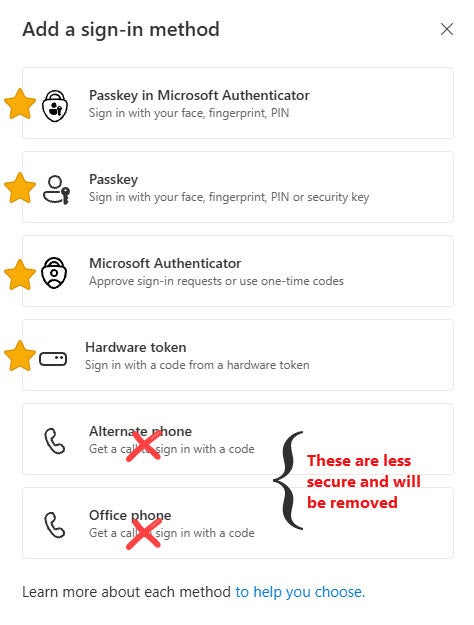
Recommended MFA methods (most secure):
- Microsoft Authenticator app (recommended)
- Passkey (Windows Hello, Face ID, Touch ID, security key)
Methods being phased out:
- SMS text messages
- Phone calls
If you currently use text messages or phone calls, consider adding Microsoft Authenticator or a Passkey before removing your existing method.
Step 1: Open Your Security Information Page
- Sign in to your CSN account.
- Open the Security Info page: https://mysignins.microsoft.com/security-info
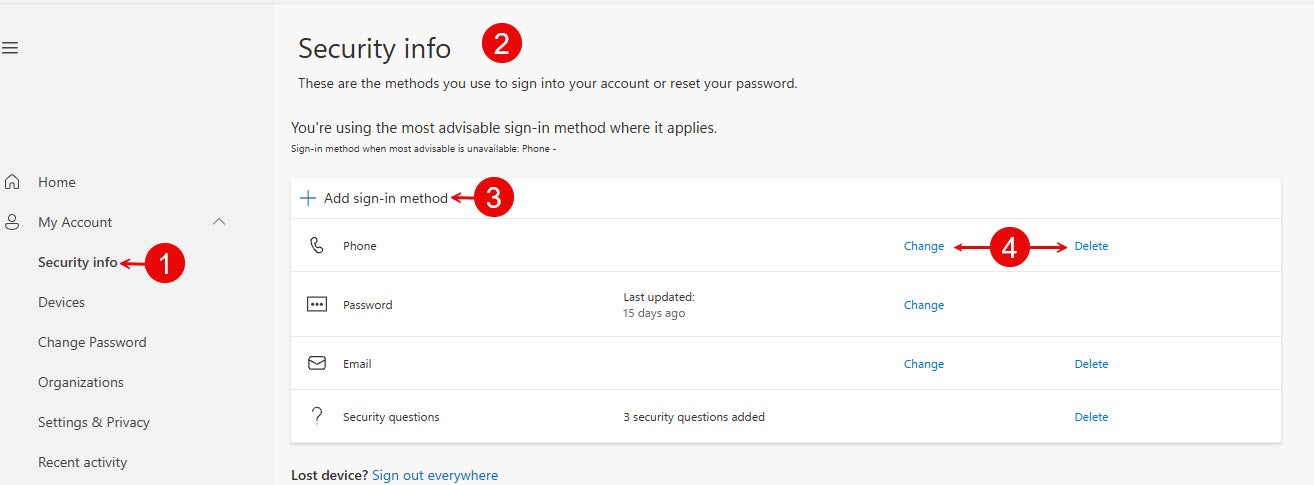
Step 2: Review Your Current MFA Methods
- On the Security Info page, review the methods currently listed.
- If you only have one method or your methods are less secure such as phone or email add a more secure option before making changes. More secure options include: an Authenticator app on your smart phone (It doesn’t need to be Microsoft if you already use another solution), Passkeys, or a hardware token if you have one.
Important: Don't lose access to your CSN account. Before you erase or trade in your old phone, add your new phone to Microsoft Authenticator and verify that it works. Once you've confirmed access, you can safely remove your old device.
Step 3: Add a New MFA Method
- Select + Add sign-in method.
- Choose the method you want to add.
- Follow the prompts to complete setup.
| Option A: Add Microsoft Authenticator (Recommended) | Option B: Add a Passkey |
|---|---|
| Passkeys may use:
|
Step 4: Remove or Update Older Methods
- Locate the method you want to change or remove.
- Select Change to update information.
- Select Delete to remove a method you no longer use.
Important: Do not remove your existing MFA method until you have successfully added and tested another method.
Step 6: Test Your New MFA Method
- Sign out of your CSN account.
- Sign back in.
- Confirm that your new MFA method works successfully.
- Complete the verification prompt.
Woo-hoo, you did it!
Need Help?
Contact the OTS Help Desk at:
- Self-Submit: www.csn.edu/helpdesk
- Email: help.desk@csn.edu
- Phone: 702-651-HELP (4357)
- Chat (7am-9pm PT M-F)
