A passkey is a secure sign-in method that allows you to sign in to your CSN account and many other websites, apps and services. To use a passkey to sign in, you first need to create and save the passkey to a device or a synced credential (username/password) manager (such as Microsoft Password Manager).
Once created, whenever you sign in, your device will prompt you to sign in with its secure method, for example, face, fingerprint, or PIN.
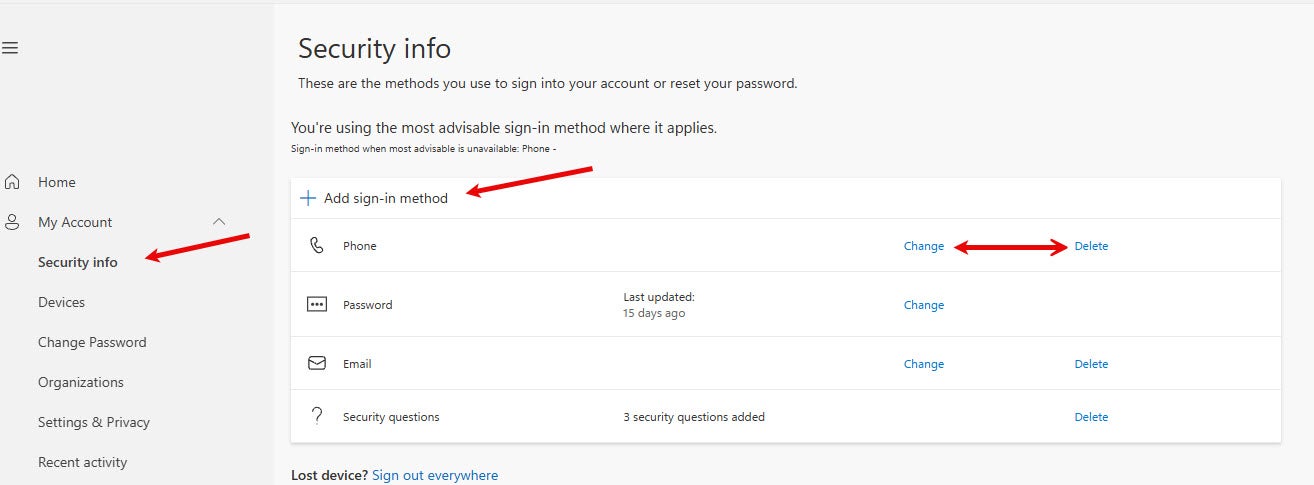
Step 1: Open the Security Info Page
- Open the Security Info page: https://mysignins.microsoft.com/security-info
- You may be asked to sign in to your CSN account
- Students: NSHEID@student.csn.edu
- Faculty/Staff: first.last@csn.edu
- On the Security Info page, review the methods currently listed.
Step 2: Add a New MFA Method
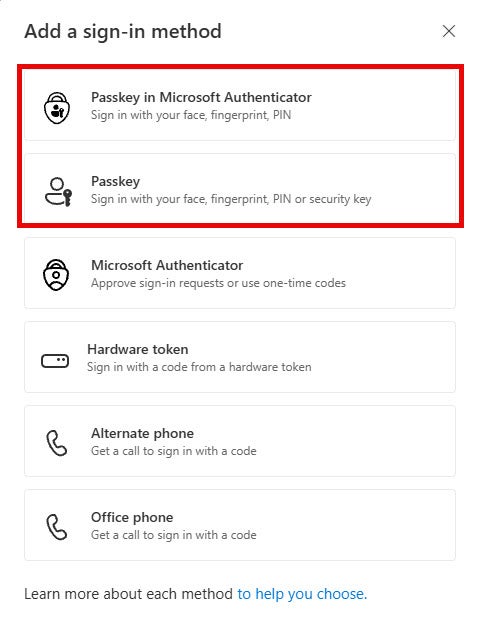
- Select + Add sign-in method.
- Choose Passkey (to use another device or password manager) or Passkey in Microsoft Authenticator (to use Authenticator installed on a mobile device). Passkeys may use:
- Follow the prompts to complete setup as every device will be different.
Step 3: Choose Where to Store Your Passkey
- Depending on your device, you may be asked where to store your passkey.
- Select your preferred option and continue.
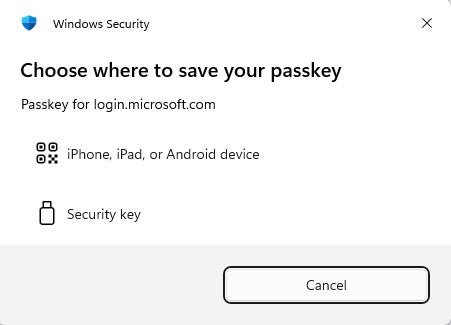
Passkey saving options include:
- Password Manager: You can save a passkey to Microsoft Password Manager or another password manager service, like iCloud Keychain, Google Password Manager, or 1Password.
- iPhone, iPad or Android device: The passkey is saved to a phone or tablet.
- This option requires you to scan a QR code using your mobile device's camera (tap Use passkey when shown) or the QR scan button in Microsoft Authenticator (or similar) installed on your phone or tablet.
- Saving passkeys to a phone or tablet may also require Bluetooth pairing for verification.
- Security key: The passkey is saved to a physical security key.
- Windows device / Windows Hello: The passkey is saved locally to your Windows device using Windows Hello.
Step 4: Follow the Instructions on your Device
- Complete the passkey save process by reading and following the prompts. The process varies based on your selection and might require you to provide an unlock gesture, such as facial recognition, fingerprint, or PIN.
Step 5: Confirm Setup
When setup is complete:
- Return to the Security Info page.
- Verify that Passkey appears in your list of sign-in methods.
Step 7: Test Your Passkey
- Sign out of your CSN account.
- Sign back in.
- Select Sign in with a Passkey if prompted.
- Complete Face ID, Touch ID, Windows Hello, or security key verification.
If sign-in is successful, your passkey has been configured correctly.
You did it!
Need Help?
Contact the OTS Help Desk at:
- Self-Submit: www.csn.edu/helpdesk
- Email: help.desk@csn.edu
- Phone: 702-651-HELP (4357)
- Chat (7am-9pm PT M-F)
