Don't Lose Access to Your CSN Account
Before you erase, trade in, recycle, or reset your old phone, make sure your new phone can access Microsoft Authenticator (or a preferred authenticator app) and approve sign-in requests for your CSN account. If you remove or erase your old phone before setting up your new phone, you may lose access to your CSN account and need to contact the OTS Help Desk for assistance.
Before You Begin
- Keep your old phone with you and powered on.
- Have your new phone available.
- Make sure you know your CSN username and password.
- Student Username: NSHEID@student.csn.edu
- Faculty/Staff &Username: first.last@csn.edu
- Password Reset on GoCSN
What If I Already Got Rid of My Old Phone?
If you no longer have access to your old phone and cannot sign in:
- Contact the OTS Help Desk (contact information located at the end of this document).
- Be prepared to verify your identity.
- The OTS Help Desk can assist with regaining access to your account.
Step 1: Install Microsoft Authenticator on Your New Phone
- On your new phone, open the Apple App Store or Google Play Store.
- Search for Microsoft Authenticator.
- Download and install the app.
Step 2: Add Your CSN Account to the New Phone
- On your computer, open a web browser.
- Sign in to your CSN account.
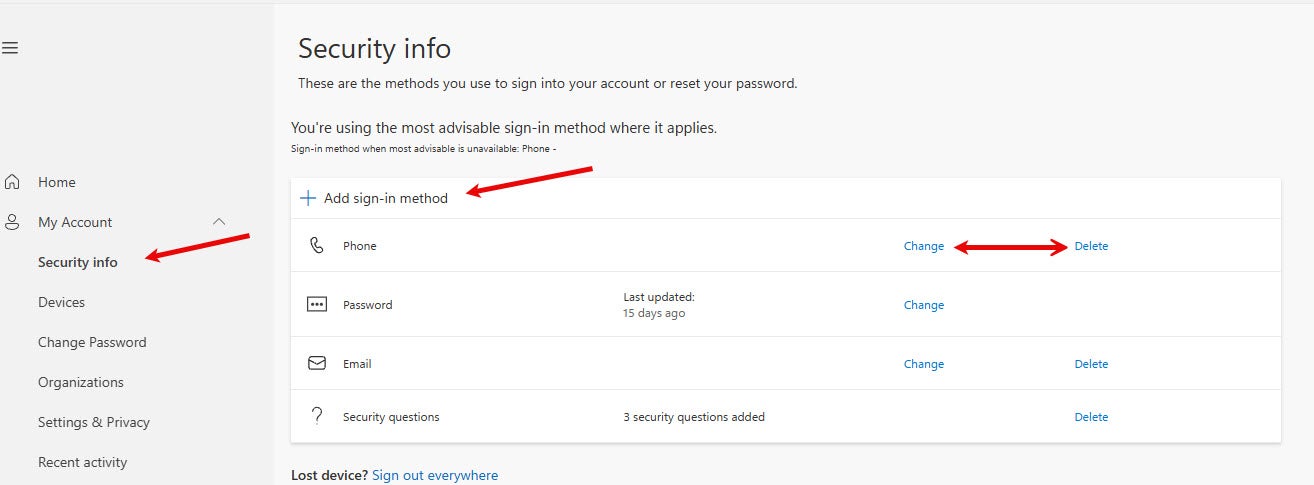
- Open the Security Info page: https://mysignins.microsoft.com/security-info
- Go to Security Info.
- Select Add sign-in method.
- Choose Authenticator App.
- Follow the on-screen instructions.
- Open Microsoft Authenticator on your new phone.
- Tap + Add Account.
- Select Work or School Account.
- Scan the QR code displayed on your computer screen.
Step 3: Verify That Your New Phone Works
- Complete the verification process when prompted.
- Sign out of your CSN account.
- Sign back in.
- Approve the sign-in request using your new phone.
Step 4: Remove Your Old Phone
After confirming your new phone works:
- Return to your Security Info
- Locate your old phone or Authenticator device.
- Select Delete or Remove next to the old device.
- Confirm the removal.
Enjoy Your New Phone!
Need Help?
Contact the OTS Help Desk at:
- Self-Submit: www.csn.edu/helpdesk
- Email: help.desk@csn.edu
- Phone: 702-651-HELP (4357)
- Chat (7am-9pm PT M-F)
