Multi-Factor Authentication (MFA)
Microsoft Authenticator helps protect your account and gives you a secure way to reset your password if you ever forget it.
Before You Begin
- Make sure your CSN account has been activated and your password has been created.
- Have your smart phone available.
- Download the Microsoft Authenticator app from the Apple App Store or Google Play Store.
- For Apple iOS: Microsoft Authenticator on the App Store
- For Android: Microsoft Authenticator on Google Play
- If you don’t have a smart phone, you will need to use a hardware token. You can use one you may already have or have one issued to you by contacting the OTS Help Desk.
Step 1: Access the Portal
- In a web browser, navigate to portal.office.com.
- Follow the directions at each step.
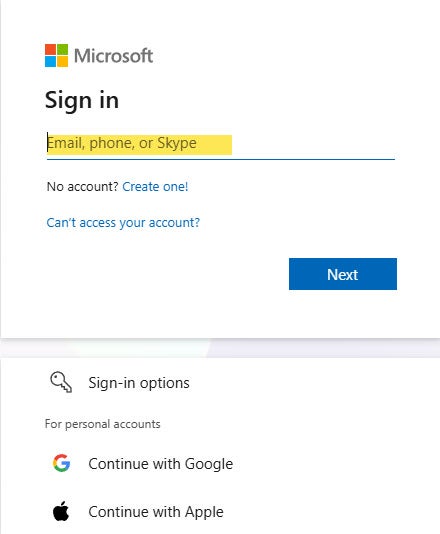
Step 2: Sign In to Your CSN Account
- Enter your CSN email address and select Next.
- Students: NSHEID@student.csn.edu
- Faculty/Staff: first.last@csn.edu
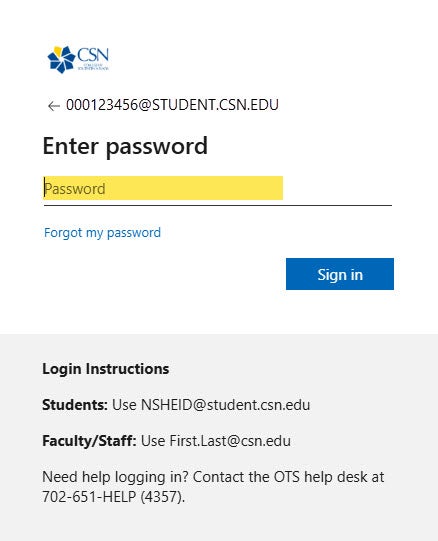
Step 3: Enter Your Password
- Enter the password you created during account activation and select Sign In.
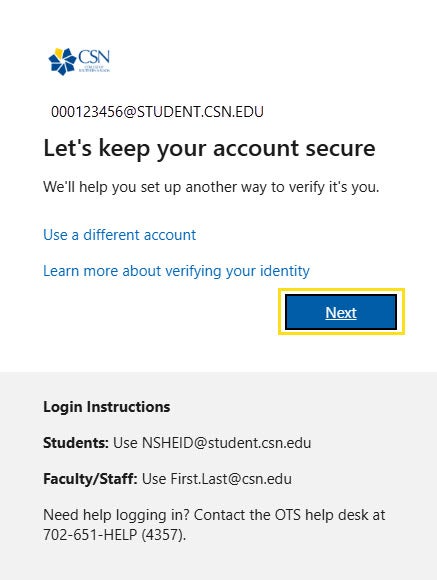
Step 4: Begin Account Verification Setup
- To help keep your account secure, CSN will ask you to set up an authenticator verification method. Select Next.
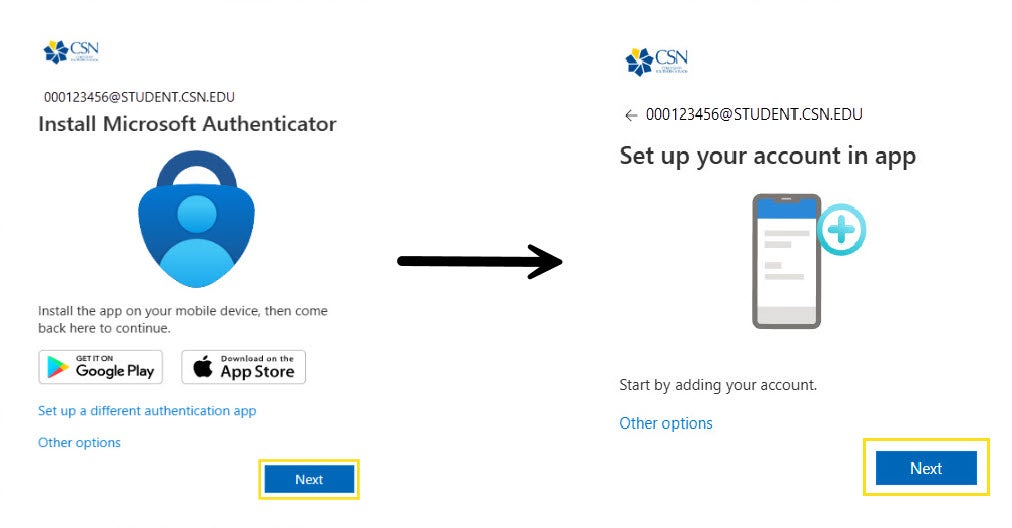
Step 5: Install Microsoft Authenticator
- If you haven’t already installed Microsoft Authenticator on your mobile device, you will need to install it first then return to this screen and select Next.
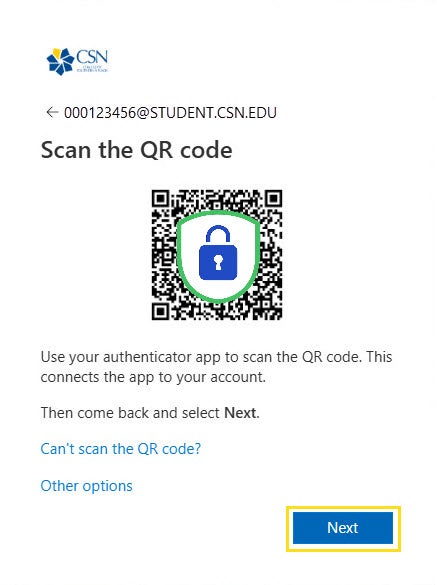
Step 6: Scan the QR Code
- Use your phone to scan the QR code displayed on your computer screen. If prompted, choose to add an account and choose Work or School Account.
- Once your CSN account appears in Microsoft Authenticator, return to your computer and select Next.
Step 8: Verify the Connection
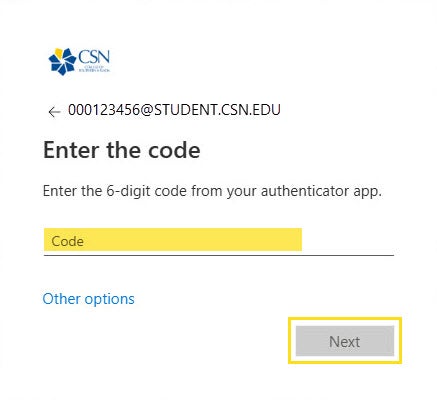
- Microsoft will ask you to enter a 6-digit code from the Microsoft Authenticator app.
- Open Microsoft Authenticator on your phone.
- Locate your CSN account.
- Enter the 6-digit code shown in the app.
- Select Next.
Step 9: Approve the Test Notification
- To make sure everything is working, Microsoft will send a verification request to your phone.
- Open the notification from Microsoft Authenticator.
- Enter the number displayed on your computer screen.
- Approve the sign-in request.
Example: If your screen displays 41, enter 41 in the Microsoft Authenticator app and approve the request.
Step 10: Setup Complete
- When you see Authenticator Added, your setup is complete. Select Done.
You're All Set!
Need Help?
Contact the OTS Help Desk at:
- Self-Submit: www.csn.edu/helpdesk
- Email: help.desk@csn.edu
- Phone: 702-651-HELP (4357)
- Chat (7am-9pm PT M-F)
